Using Designer
The Designer is the part of Nussknacker used for scenario authoring — visually creating, testing, and deploying the logic that drives your real-time decisions (on data streams or in request–response interactions) and in batch-style processing. Each Scenario is a graph built from reusable components that represent how your records move through the system. You can think of a scenario as an executable diagram: it shows how records are received, enriched, filtered, aggregated, and finally sent onward.
UI overview
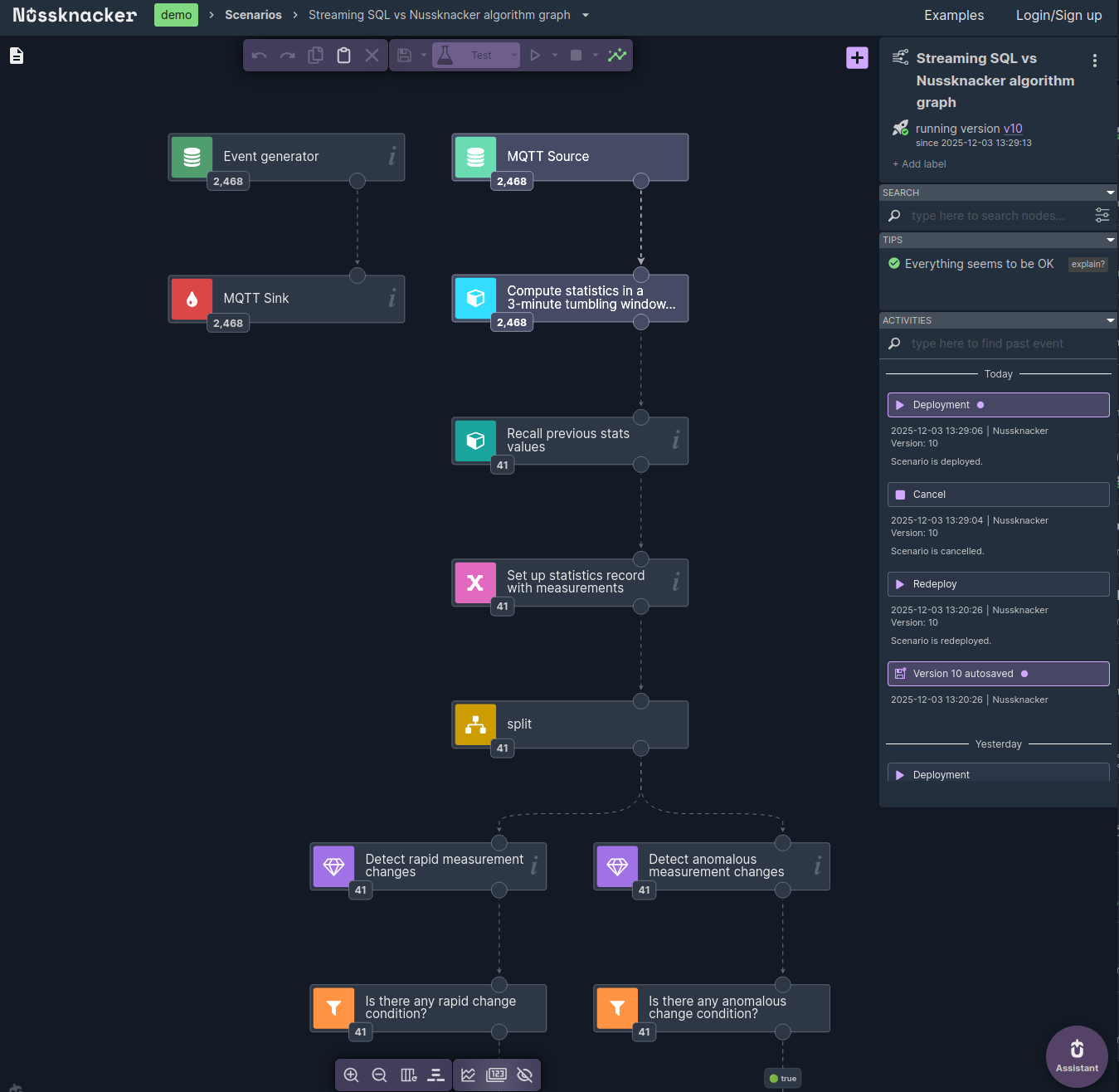
Nussknacker Designer
The Designer workspace consists of the following areas:
-
Scenario graph area — the central canvas where the scenario logic is authored in the form of the graph.
-
Components Palette containing the list of available components such as sources, sinks, enrichers, etc. Its content depends on the integrations configured in your environment and on the selected processing mode. The Component Palette becomes visible once the
 button is pressed.
 -
Status Panel in the right part of the Designer window. Note the kebab menu
 , which will take you to scenario properties.
 -
additional panels with clearly defined functionality: Actions, Edit, View, Metrics, Search, Tips, Activities. You can shuffle these panels around. Refer to Testing and Debugging for more details on how to perform tests, debug the scenario and monitor scenario metrics.
Scenario properties
Click the kebab menu next to the scenario name in the Status Panel and select properties.
Check here for information on scenario properties in the streaming processing mode. Check here for information on scenario properties in the request - response processing mode.
Quickstart scenario
Go to quickstart scenario for a quick introduction to scenario authoring with Nussknacker.
Designer Tips & Tricks
While the Designer GUI in most cases is self-explanatory and forgiving, there are a few features that may be not so obvious to guess:
- Selecting nodes - use Shift button and left mouse button to select nodes. If you expand the selection area rightward, you need to fully mark nodes; alternatively you can mark nodes partially if you expand the selection area leftward.
- Copy & paste - you can copy and paste selected nodes; just ensure that your browser has access to the clipboard for the Nussknacker site you use.
- Tab navigation - you can navigate inside node details with TAB button.
- Panels in the Designer - there are several panels in the authoring canvas. You can move these panels and collapse them. You can always restore default layout using "reset" button
 in the View panel.
 - Scenario versioning - whenever a scenario is saved, a new version is created. You can revert to the older version of the scenario (see Activities panel). Adding comments when saving a scenario may help to find the right version.
- Deleting a scenario - scenarios can be archived and unarchived, they are never completely deleted. You can do it from the scenarios list.
- Inserting a node into the flow - you can drop a node on the edge connecting nodes and Designer will fit it into the graph.