Using Designer
The Designer is the part of Nussknacker used for scenario authoring — visually creating, testing, and deploying the logic that drives your real-time decisions (on data streams or in request–response interactions) and in batch-style processing. Each Scenario is a graph built from reusable components that represent how your records move through the system. You can think of a scenario as an executable diagram: it shows how records are received, enriched, filtered, aggregated, and finally sent onward.
UI overview
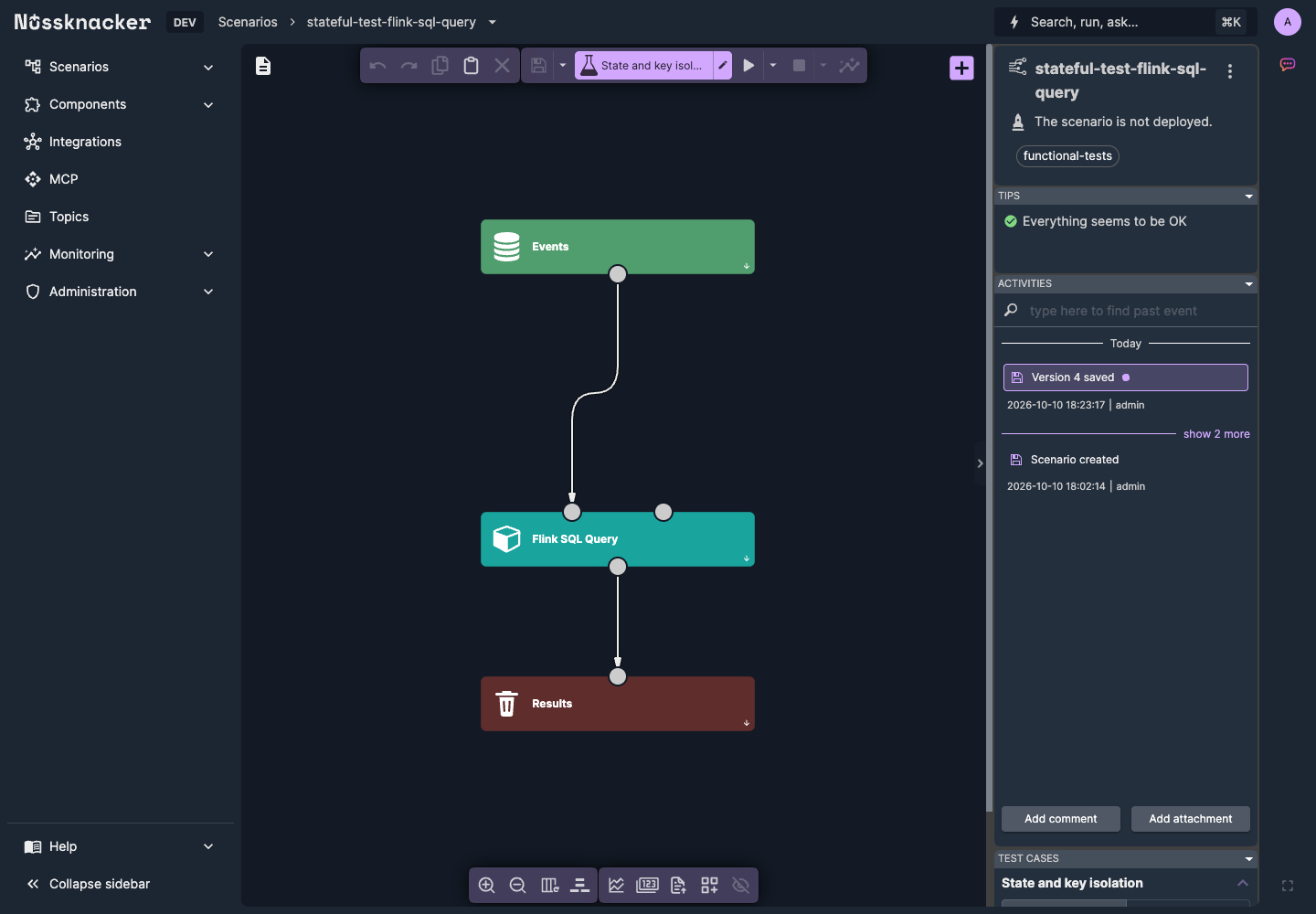
The workspace combines scenario editing with navigation and panels for validation, history and testing.
The Designer workspace consists of the following areas:
-
Scenario graph area — the central canvas where the scenario logic is authored in the form of the graph.
-
Component Palette containing the list of available components such as sources, sinks, enrichers, etc. Its content depends on the integrations configured in your environment and on the selected processing mode. The Component Palette becomes visible once the
 button is pressed.
 -
Scenario details panel (status panel) in the right part of the Designer window, showing the scenario status, category and labels. Note the kebab menu
 , which opens the scenario menu with scenario properties, compare, import, export and archive.
 -
additional panels with clearly defined functionality: Actions, Edit, View, Metrics, Search, Tips, Activities. You can shuffle these panels around. Refer to Testing and Debugging for more details on how to perform tests, debug the scenario and monitor scenario metrics.
Saving, versions, the Activities panel, scenario labels and deployment are described in Saving, versions and deploying. The side menu, the scenario and component lists and the command bar are described in Navigating the Designer.
Scenario properties
Click the kebab menu next to the scenario name in the Scenario details panel and select properties.
Check here for information on scenario properties in the streaming processing mode. Check here for information on scenario properties in the request - response processing mode.
Sticky notes
Sticky notes let you leave explanations directly on the canvas. They are saved together with the scenario, but they are not part of the scenario logic: they are not connected to nodes and are ignored when the scenario runs.
- Add a note - drag Sticky Note from the Miscellaneous group of the Component Palette onto the canvas.
- Edit - double-click the note and type; the content is Markdown, so you can use headings, lists and links. Click outside the note to finish.
- Resize - drag the bottom-right corner of the note.
- Move, copy or delete - like nodes: drag it, or select it and use copy, paste or delete.
The administrator can limit the length of a note and the number of notes per scenario, or turn sticky notes off,
with the stickyNotesSettings configuration (maxContentLength, maxNotesCount, enabled). When the limit of notes
is reached, the Sticky Note item in the palette is disabled.
Canvas layout tools
The view panel holds the canvas tools:
- zoom in / zoom out.
- reset - restores the default arrangement of the panels and fits the scenario to the window.
- layout - arranges the nodes automatically (sticky notes are left where they are). When several nodes are
selected, only the selection is arranged. Hold Alt while clicking to lay the flow out horizontally, and Shift
to only fit the scenario to the window without moving anything. The shortcut
athenxruns the layout from the keyboard.
Moved or arranged nodes are a change of the scenario - save it to keep the new layout.
Searching nodes
The Search panel finds nodes in the open scenario. Matching nodes are highlighted on the canvas and listed in the panel together with the fields that matched. Click a result to select the node and center the canvas on it; click it again to open the node details.
A plain search text is looked up in the node name, description, component type, parameter names and values, output
variable names and the conditions of outgoing edges. To narrow the search to particular fields, use the
Advanced Search form (the filter icon in the search box) with the fields Id, Name, Value, Type,
Label (parameter name), Description, Output and Edge (edge condition), then Submit. Clear resets
the form. The form writes the query into the search box as field:(value) filters, for example
type:(kafka) value:(#input.amount); a node has to match every field given. Id must match exactly, the other
fields match any part of the text. Several values for one field are separated with commas.
When the command bar is on (the default), node search starts there: the Search panel shows up when you choose Show in search panel in the command bar, and the Advanced Search form is not offered. Switch the command bar off in Settings → Experimental → Command bar to keep the Search panel with its advanced form on the canvas.
Quickstart scenario
Go to quickstart scenario for a quick introduction to scenario authoring with Nussknacker.
Designer Tips & Tricks
While the Designer GUI in most cases is self-explanatory and forgiving, there are a few features that may be not so obvious to guess:
- Selecting nodes - use Shift button and left mouse button to select nodes. If you expand the selection area rightward, you need to fully mark nodes; alternatively you can mark nodes partially if you expand the selection area leftward.
- Copy & paste - you can copy and paste selected nodes; just ensure that your browser has access to the clipboard for the Nussknacker site you use.
- Tab navigation - you can navigate inside node details with TAB button.
- Panels in the Designer - there are several panels in the authoring canvas. You can move these panels and collapse them. You can always restore default layout using "reset" button
 in the View panel.
 - Scenario versioning - whenever a scenario is saved, a new version is created. You can revert to the older version of the scenario (see Activities panel). Adding comments when saving a scenario may help to find the right version.
- Deleting a scenario - scenarios can be archived and unarchived, they are never completely deleted. You can do it from the scenarios list.
- Inserting a node into the flow - you can drop a node on the edge connecting nodes and Designer will fit it into the graph.