Testing and Debugging
There are several features in Nussknacker designed specifically to ease testing and debugging; this page provides a brief explanation of how to use them.
The screenshots are taken from the publicly available demo scenario. You can explore the same scenario live here (no registration required): Demo scenario link
Watching algorithm behavior with counts
Understanding how many records passed through a given node can give a good overview of how the algorithm behaves and help quickly pinpoint problematic nodes. Click counts button  to see the counts snapshot in the time range of your choice. Select a refresh period to watch the counts live.
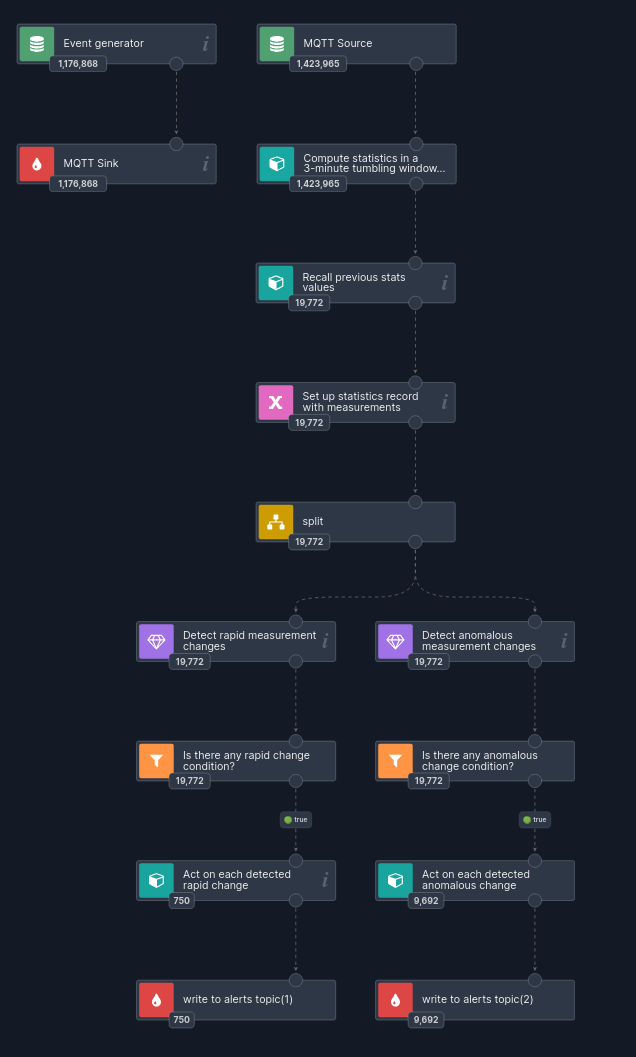
Counts reveal how many records each node has processed, making it easy to see where records are filtered out, enriched, split, or forwarded within the scenario.
Watch live data
Live data allows you to watch records as they are processed by scenario nodes. Click the live data button  in the
 Actions menu to activate this functionality - the icon should turn green  .
.
If you double-click the source node, you can examine content of the records which entered the scenario (top of the left panel).
As the record traverses the scenario, additional variables can be attached to it, it can be rerouted by the Choice node, it can be filtered out or completely new records can be created. Just double-click a node of interest to you, to see how many records entered this node and - for every outgoing branch - how many left the node.
To see how the record was transformed, choose an incoming record in the left panel and examine its content (the variables) upon entry to the node. You can see how this record was transformed by the node (which variables were added) in the right panel.
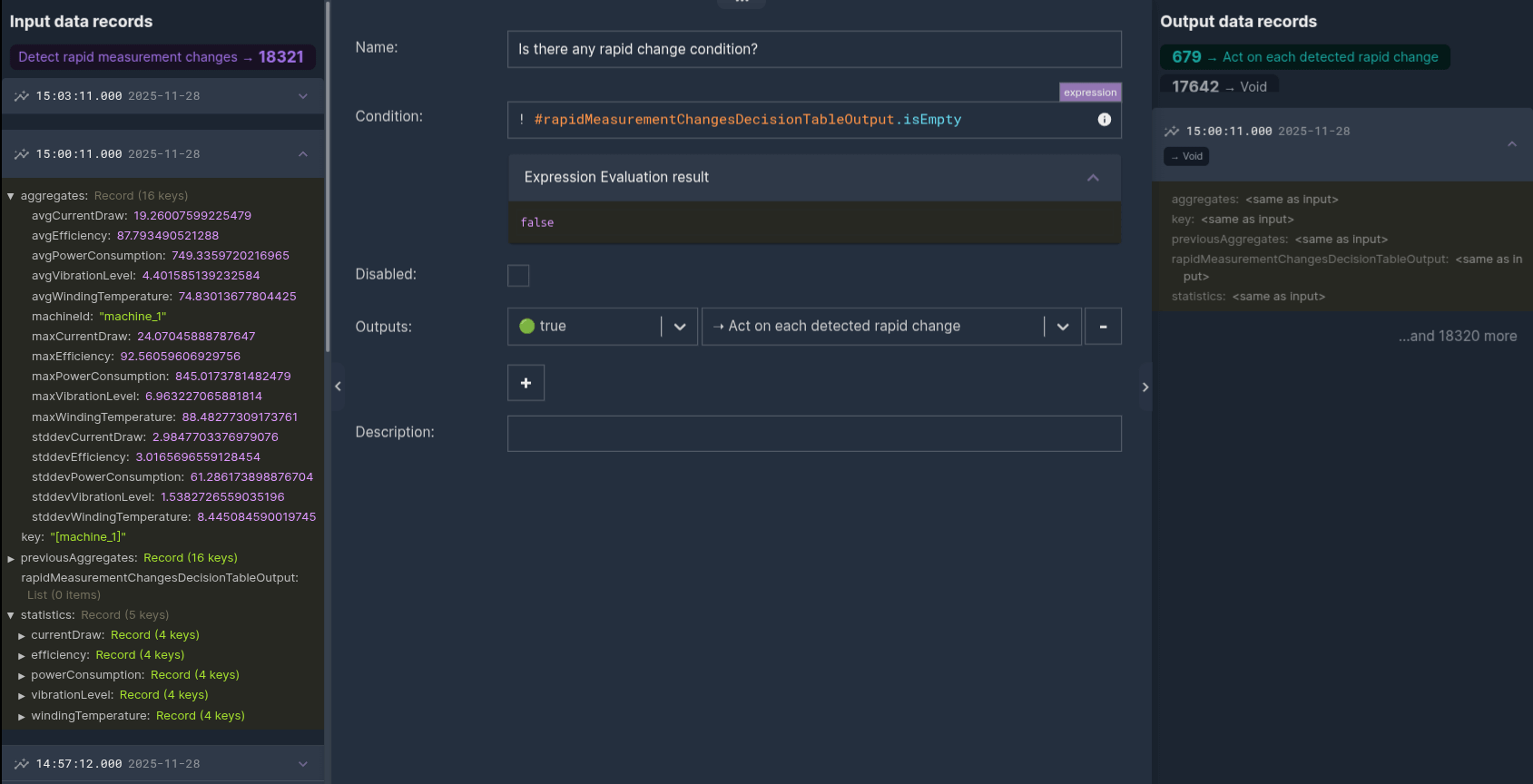
Inspecting input and output records for a "Is there any rapid change condition?" node in the scenario from the previous section. 🔍 View full-size image
Testing
A test runs the scenario on a handful of test records, without deploying it. The Designer runs the scenario as it is currently shown in the editor, including unsaved changes, and shows the results on the graph: counts on every node, the records that entered and left each node, and the results of assertions.
What a test does and does not do:
- Sources do not read from their real input (for example a Kafka topic). The test records you provide are fed in instead.
- Sinks do not write anything. Whatever a sink would have written is captured and shown in the test results.
- Enrichers call their real services (HTTP APIs, databases, LLMs, key-value stores) unless they are mocked in a test case. Mock an enricher if its call must not reach an external system during a test.
- Enabled processors, such as the logger, execute their real services and cannot be mocked. To skip their side
effects in an API test, set
isDisabled: trueon the processor nodes in the temporaryscenarioGraphsent toPOST /api/scenarioTesting/{scenarioName}/performTestCase. This skips the service calls and continues along the outgoing paths. Do not save these temporary changes to the original scenario. - Stateful nodes, such as aggregates,
previousValueor deduplication, really process the test records. They cannot be mocked, so a window or a threshold is reached only if you feed enough records, in the right order, within the record limit.
There are two ways to test a scenario:
- Test cases - named, reusable sets of test data, mocks and assertions, saved together with the scenario. This is
what the main test button in the
actionspanel runs. - One-off tests - run on records you generate, upload from a file or type into a form. They are not saved.
Test cases
A test case consists of:
| Part | What it holds |
|---|---|
| Name | Unique within the scenario, at most 100 characters. A new scenario starts with Test case 1. |
| Test data | The input records fed into the source(s). |
| Mocks | For selected enrichers, an expression whose value is used instead of calling the real service. |
| Assertions | For selected nodes, conditions checked against the records that entered and left the node. |
Test cases are part of the scenario: they are saved, versioned and exported with it. Removing a node removes its test data, mocks and assertions from all test cases.
Running a test case
The test button  in the
 actions panel is labelled with the name of
the active test case; hovering over it shows run <test case name>. Clicking it runs the active test case. If the
active test case has no test data yet, the Edit test case dialog opens instead, so that you can add some.
When the scenario has more than one test case, the button also has a menu with:
Run all- runs every test case and collects the results of each,- the list of test cases, with the assertion status of their last run - selecting one makes it the active test case.
The pencil icon on the test button opens the Edit test case dialog for the active test case.
Editing a test case
The Edit test case dialog has three tabs. Each tab lists the relevant nodes of the scenario and marks each of them as
Configured or Not configured:
| Tab | Nodes listed | What you set |
|---|---|---|
Test data | Sources | Input records for each source |
Mocks | Enrichers, and other components that support mocks (see below) | Mock expression and whether the mock is enabled |
Assertions | All nodes except sources | Assertions checked after the run |
Close & Run closes the dialog and runs the test case; Close only closes it. The name of the test case can be
edited at the top of the dialog.
The same settings are available per node: open a node and go to its Testing tab. The selector at the top of the tab
shows which test case you are editing; there you can also switch the active test case, rename it, add a copy of it
(+, which opens the Save as dialog) or delete it. The only remaining test case cannot be deleted.
The Testing tab, mocks and the Test cases panel can be switched off in a given Nussknacker installation. If you do
not see them, the corresponding features are not enabled there. Whether a scenario may have more than one test case
is controlled by the testCasesSettings.multipleEnabled Designer setting (enabled by default).
Test data
Test data is entered in the source node's Testing tab (section Test data) or in the Test data tab of the
Edit test case dialog.
Add recordadds an empty record to edit by hand.Paste JSON linesadds several records at once, one JSON object per line.Append from live datafetches the given number of records from the source's real input, for example the latest messages from a Kafka topic. It is available only for sources that support it.Copy allcopies all records as JSON lines;Clear allremoves them.
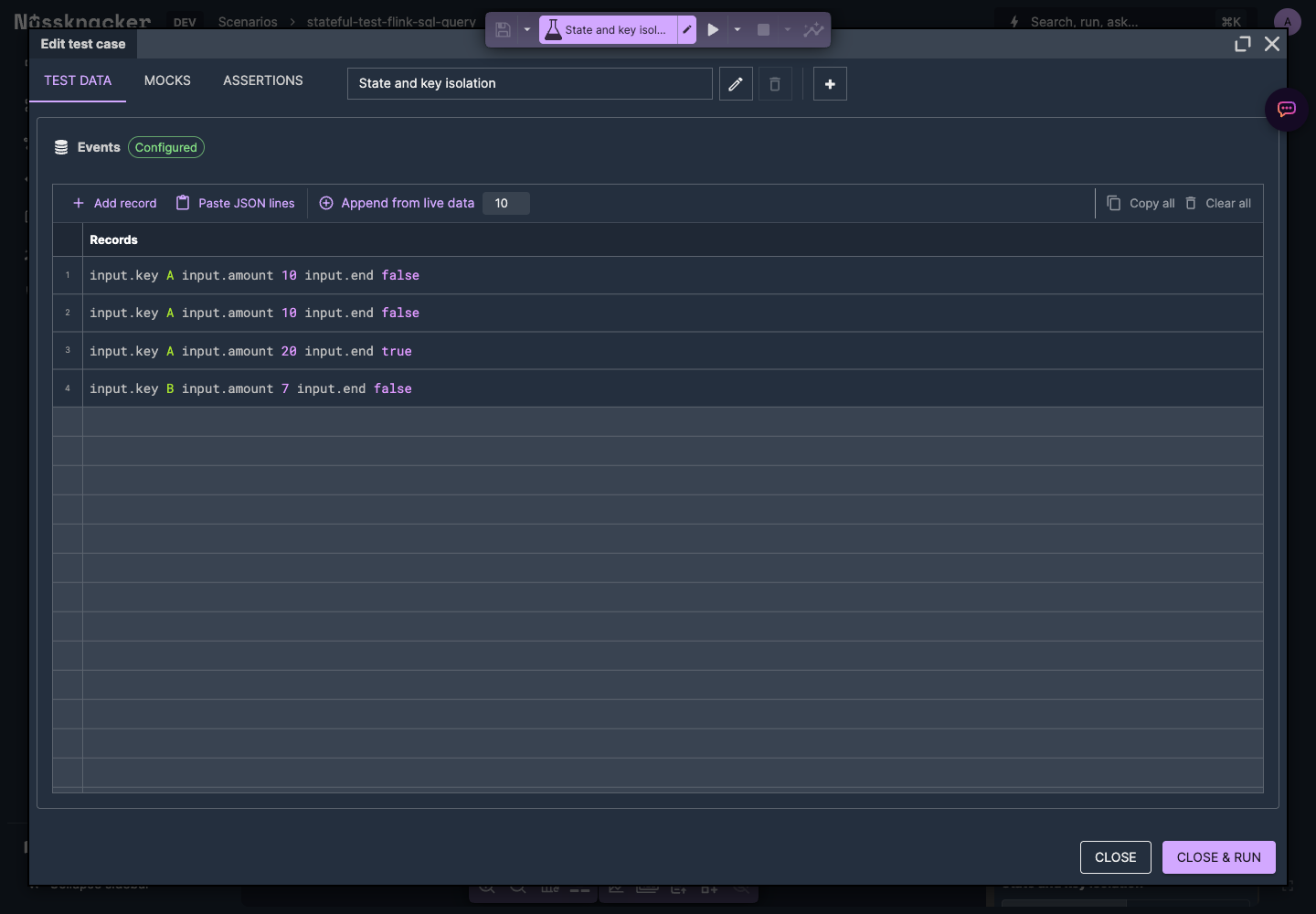
Prepare input records for the selected test case in the Test data tab.
The test records are displayed using the Elasticsearch way of displaying JSON objects. Once you double-click a test record, you will see an editable, formatted in a standard way, JSON object.
Your test data payload should be in the input field. If your scenario works in the streaming processing mode, you can
also define the inputMeta object content. You can find more on scenario predefined variables
here.
A test case holds at most 20 records by default (see Limits).
Mocks
A mock replaces the result of a node with the value of an expression, so that the real service is not called during the test. Mocks are defined per test case: the same enricher can return different values in different test cases.
Which nodes can be mocked:
| Node | Can be mocked |
|---|---|
| Enrichers - nodes that call a service and store its result in an output variable (e.g. HTTP, OpenAPI, database lookup, key-value store, LLM) | Yes |
Components that declare mock support, such as the Request-Response interaction node | Yes |
| Decision Table | No mock field in the Designer |
| Processors - service calls without an output variable, such as the logger | No - they run unless disabled |
Custom nodes: aggregates, previousValue, deduplication, delay, for-each, joins and other stateful nodes | No |
| Sources, sinks, filters, choices, variables | No |
A mock configured for a node that cannot be mocked is reported as Mock configured for non-enricher node '<node name>'.
How to write a mock:
- The mock is an expression. The editor starts in JSON Template mode, where you write the value as JSON; you can switch it to a SpEL expression. The editor may prefill a suggested value generated from the enricher's output type.
- The value must match the type of the enricher's output variable. A mismatch is reported as a validation error of the
test case. Watch numeric types: a field declared as
Longneeds aLongvalue in SpEL, e.g.1L. - The expression can use the variables available in the node, for example
#input, so a mock can return different values for different records. - The value is used as the content of the enricher's output variable for every record that reaches the node.
Example - a SpEL mock for an enricher whose output is a record with status and score fields:
{status: 'APPROVED', score: #input.amount > 1000 ? 20 : 80}
The Enabled switch next to a mock lets you temporarily turn it off and call the real service. The switch is
remembered only in your browser and is not saved with the scenario.
Assertions
An assertion is a condition checked after the test case has run. Assertions are attached to a node and see the records
of that node. They are defined in the node's Testing tab (section Assertions) or in the Assertions tab of the
Edit test case dialog. Any node except a source can have assertions.
Each assertion has four fields:
| Field | Meaning |
|---|---|
Description | Optional text shown with the result. |
Actual | SpEL expression computing the value to check. |
Assertion | The operator: ==, !=, >, <, >=, <=, has size, contains, matches. |
Expected | SpEL expression computing the value to compare with. |
Both Actual and Expected are expressions, so a text has to be quoted: 'APPROVED'. The operators work as follows:
==,!=,>,<,>=,<=compare the two values, as the corresponding SpEL operators do,has sizechecks that the collection inActualhas the number of elements given inExpected,containschecks thatActual(a list or a text) containsExpected,matcheschecks that the text inActualmatches the regular expression inExpected.
Apart from == and !=, an assertion fails if either value is null.
In assertion expressions you can use these variables:
| Variable | Content |
|---|---|
#incomingRecords | List of the records that entered the node. Each record holds the variables available at that point, e.g. #incomingRecords[0].input. |
#outgoingRecords | List of the records that left the node, through all of its outputs. For a sink, it holds the values the sink would have written. |
#TESTS | Helper with assertEquals(expected, actual) and assertNotEquals(expected, actual), used by assertions written as a single expression. The Designer's assertion editor does not need it. |
Global variables and helpers, such as #CONV or #DATE, are also available. Because both record variables are lists,
you will often use list filtering and
list projection.
Examples:
| Goal | Node | Actual | Assertion | Expected |
|---|---|---|---|---|
| Exactly one record reached this sink | sink | #incomingRecords | has size | 1 |
| No record reached this sink | sink | #incomingRecords.size() | == | 0 |
| The enriched status is as expected | any node after the enricher | #incomingRecords[0].customer.status | == | 'GOLD' |
| All records over 1000 were routed here | sink | #incomingRecords.?[#this.input.amount > 1000].size() | == | #incomingRecords.size() |
Assert both on the sink that should receive a record and on the one that should stay silent. Without the second assertion, a record dropped by an earlier filter cannot be told apart from a record sent to the wrong branch.
Assertions are validated together with the scenario: an expression that does not compile, or that compares values of
incompatible types, is shown as an error in the node's Testing tab.
Reading the results
After a test case has run:
- the graph shows the test counts - how many test records reached each node; a node with
0was not reached, - each node with assertions shows a summary of their results on its right border,
- the test button shows the overall status of the active test case,
- opening a node shows the records that entered and left it, with all their variables, just like with live data. For a sink, these are the records it would have written.
A failed assertion shows a message such as Expected: [1] but found [0], Expected size: [1] but found: [2] or
Expected [abc] to match [a.*z]. An error during evaluation is reported as
Exception during assertion evaluation: ....
The Test cases panel
The Test cases panel lists all test cases of the scenario with the assertion status of their last run.
- Hovering over a test case shows a run icon (
Run test);Run allin the panel header runs every test case and is shown when there is more than one. - Clicking a test case makes it active and expands it. The expanded test case has two views:
Results- assertion results grouped by node, in scenario order. The icon next to a node (Open node testing details) opens that node'sTestingtab. Before the first run it showsNo results yet.with a link to run it.Definitions- the test case contents:Sources(with the number of events),MocksandAssertions(with the number of assertions per node). Hovering over an entry highlights the node on the graph.
Last run:shows when the test case was last run.
One-off tests
The Metrics button of the Metrics panel opens the scenario metrics screen: throughput, errors, delays and the
calls to external services of the deployed scenario over the last 15 minutes up to a day, with links to its Grafana
dashboard. Depending on the installation it opens over the editor or in its place.
The Metrics panel has buttons for tests that are not saved with the scenario:
| Button | Tooltip | What it does |
|---|---|---|
generate file | generate test data file | Fetches the given number of records from the source's real input and saves them to a file (dialog Generate test data). |
from file | run test on data from file | Runs a test on records from a file, for example one created with generate file and then edited. |
counts | Show number of processed records | Shows counts of the deployed scenario. |
hide | hide counts | Hides test results from the graph. |
generate file is available only for sources which can fetch live data, and only for the latest saved version of the
scenario.
Your installation may additionally be configured with these buttons:
| Button | Tooltip | What it does |
|---|---|---|
ad hoc | run test on ad hoc data | Opens the Test scenario form, where you enter the values of the source's fields, and runs the test on that one record. Supported only for scenarios with a single source whose type offers such a form. Shift-click repeats the test with the previous data. |
generated | run test on generated data | Fetches the given number of records from the source's real input and runs the test on them right away (dialog Generate scenario test data and run tests). |
The mocks and assertions of test cases are not used in one-off tests: enrichers call their real services.
Limits
| Limit | Default | Designer setting |
|---|---|---|
| Records in one test (all sources together) | 20 | testDataSettings.maxSamplesCount |
| Size of test data | 200 000 characters | testDataSettings.testDataMaxLength |
| Size of test results | 50 MB | testDataSettings.resultsMaxBytes |
| Length of a test case name | 100 characters | - |
Keep the record limit in mind when testing stateful logic. A rule that fires after 50 events in a window cannot be reached with 20 records: test it on a copy of the scenario with a lower threshold, or assert on something the window can reach. When records are keyed or windowed, give them increasing timestamps; equal timestamps mean that no time has passed between them.