Docker Setup Tutorial
You can start your journey with Nussknacker using fully-featured docker-based environment. The dependencies and manual steps were reduced to minimum to allows to start interacting with Nussknacker on your local machine.
A very concise Nussknacker terminology primer
In Nussknacker, scenario describes a decision algorithm i.e. how records should be processed and what actions should be performed. Scenarios are composed of nodes, which work with records. Nodes can organize the flow, transform data carried in records, bring additional data ("enrich"), call actions in external systems, etc.
Prerequisites
- Docker (20.10.14+) installed
- unused ports: 8080, 8181
- MacOS, Windows (10, 11), Linux
Running
- MacOS & Linux One-liner script
- Windows One-liner script
- Manual steps
Run in the console:
curl -o- https://raw.githubusercontent.com/TouK/nussknacker-quickstart/main/download-and-start.sh | bash
Run in Terminal as admin (Win+X and then pick Terminal (Admin)) :
Invoke-WebRequest -Uri 'https://raw.githubusercontent.com/TouK/nussknacker-quickstart/main/download-and-start.bat' -OutFile 'download-and-start.bat'; Start-Process 'cmd.exe' -ArgumentList '/c download-and-start.bat'
Do the following steps:
- Download Nu Quickstart
- Unzip it and go to the unzipped folder
- Run
start.sh(for MacOS or Linux) orstart.bat(for Windows) script
And then wait a little bit and open http://localhost:8080/ in your favorite browser and log in as admin:admin
You can interact with the solution using the following user interfaces:
- Nusskanacker Designer (
http://localhost:8080) - AKHQ (
http://localhost:8080/akhq) - Flink Manager (
http://localhost:8080/flink)
What's in the Quickstart?
The Quickstart bootstraps Nussknacker and its dependencies in docker containers.
Click to read about the exposed services details
- Nussknacker Designer - Nu scenarios are developed and managed from it
- Postgres - database for the Designer
- Flink (Job Manager & Task Manager) - a powerful steaming processing framework
- Kafka - broker for steaming data
- Schema Registry - schema for the data in Kafka's topics
- AKHQ - UI for Kafka & Schema Registry
- Grafana & InfluxDB & Telegraf - for scenarios monitoring
- Nginx - gateway for Designer and other UIs
- Quickstart setup - automatically creates example scenarios and generates sample Streaming and Request-Response data, creates Kafka's topics and topics' schemas.
After logging in to the Nu Designer, in the scenarios list, you will find example scenarios. They are fully functional and working.
Streaming example
With DetectLargeTransaction scenario we want to show you
a Streaming mode
The scenario logic is pretty simple: it reads messages from Kafka's Transactions topic and
the large ones (which amount is greater than 20), it sends them to audit (to Kafka's ProcessedTransactions topic).
Input data (transaction messages) are being generated by one of the Quickstart services. You can watch them in
AKQH. The scenario is already deployed and is being
executed by the Flink engine. You can verify that by checking the Flink Dashboard.
The "large" transactions are sent to
ProcessedTransactions topic.
As a next step we'd advise you to:
- see the metrics of the scenario - click the
metricsbutton - see how many messages have been processed so far, and by which nodes - click the
countsbutton - try to run Nu Tests to see how the messages are processed - click the
generatedand/orad-hocbuttons (you may want to read more about the Test functionality first) - try to modify the scenario - drag&drop and attach a new component from the Creator Panel and/or modify the existing scenario nodes
- save the modified scenario and deploy the changes - click the
saveand thendeploybutton (you can go back to previous steps to verify if your changes work as expected)
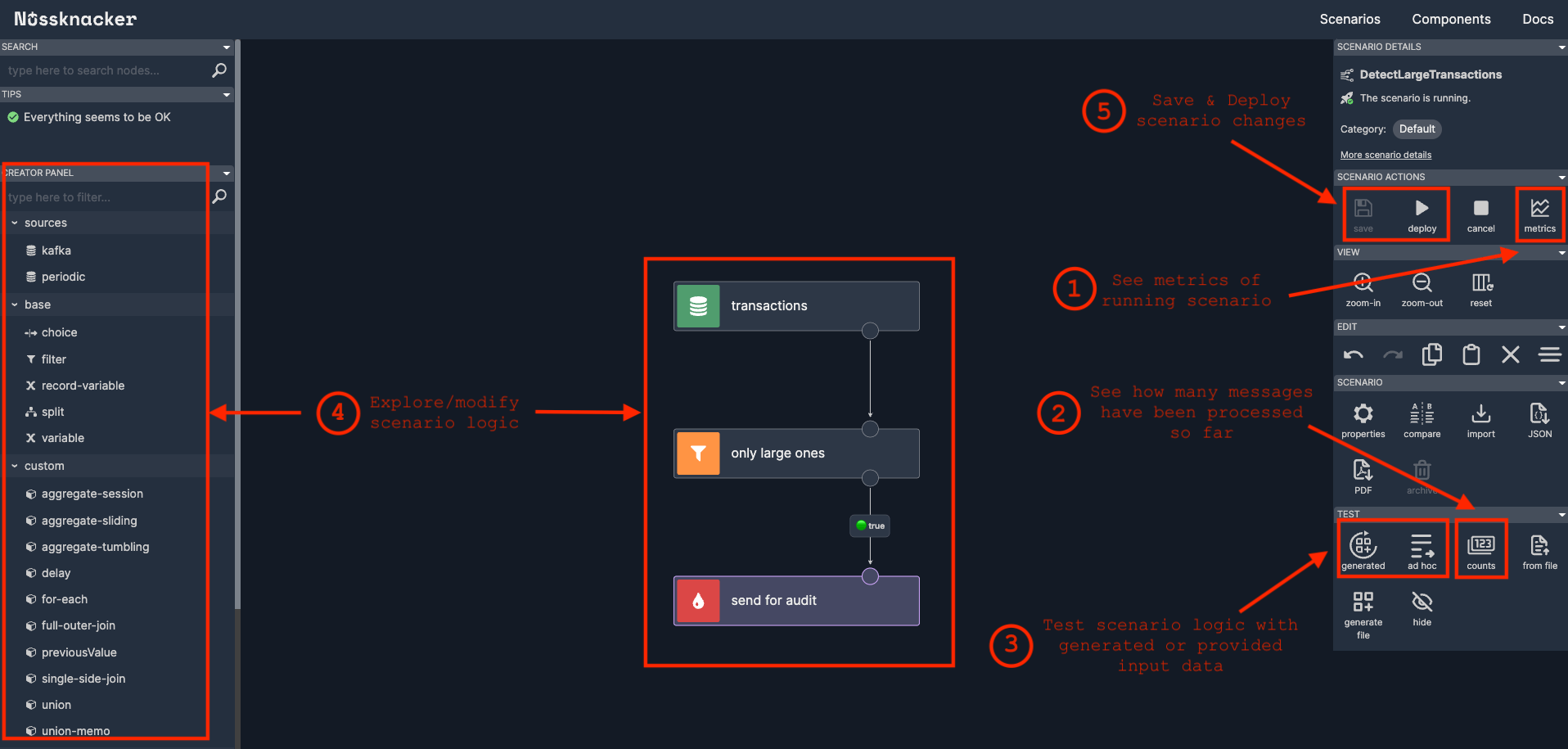
Streaming scenario example. UI panels placement may differ from the actual one.
Request-Response example
The next example is LoanRequest scenario. It shows
a Request-Response mode. The scenario logics describes a simple
method of determining maximum of loan amount based on loan type (passed in a requestType field of the input request) and a city
(also from the request data).
Input data (HTTP requests) are being generated by one of the Quickstart services. The scenario is already deployed and is being executed by the Lite engine.
As a next step we'd advise you to:
- see the metrics of the scenario - click the
metricsbutton - see how many requests have been processed so far, and by which nodes - click the
countsbutton - try to run Nu Tests to see how the requests are processed - click the
generatedand/orad-hocbuttons (you may want to read more about the Test functionality first) - you can send a request by your own, directly to the running scenario:
- Using Postman
- Using curl
POST http://localhost:8181/scenario/loan
Body:
{"customerId": "client01", "requestedAmount": 500, "requestType": "mortgage", "location": { "city": "Warszawa", "street": "Obozowa" }}
curl -XPOST "http://localhost:8181/scenario/loan" -d '{"customerId": "client01", "requestedAmount": 500, "requestType": "mortgage", "location": { "city": "Warszawa", "street": "Obozowa" }}'
- try to modify the scenario - drag&drop and attach a new component from the Creator Panel and/or modify the existing scenario nodes
- save the modified scenario and deploy the changes - click the
saveand thendeploybutton (you can go back to previous steps to verify if your changes work as expected)
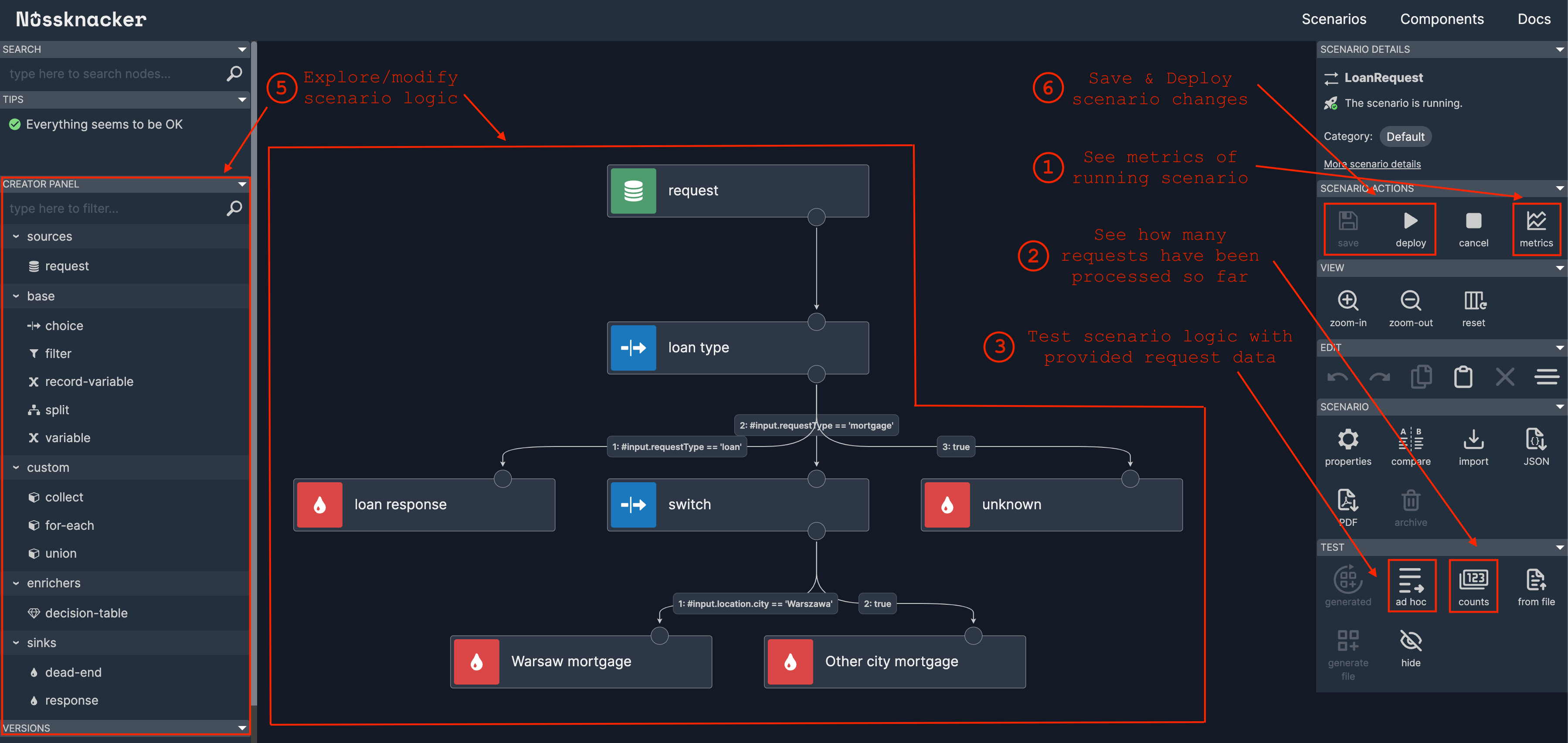
Streaming scenario example. UI panels placement may differ from the actual one.
Cleaning up
To stop the Quickstart environment and clean the resources, just run stop-and-clean.sh script (you will find in the downloaded Quickstart
folder) and wait a few seconds.